
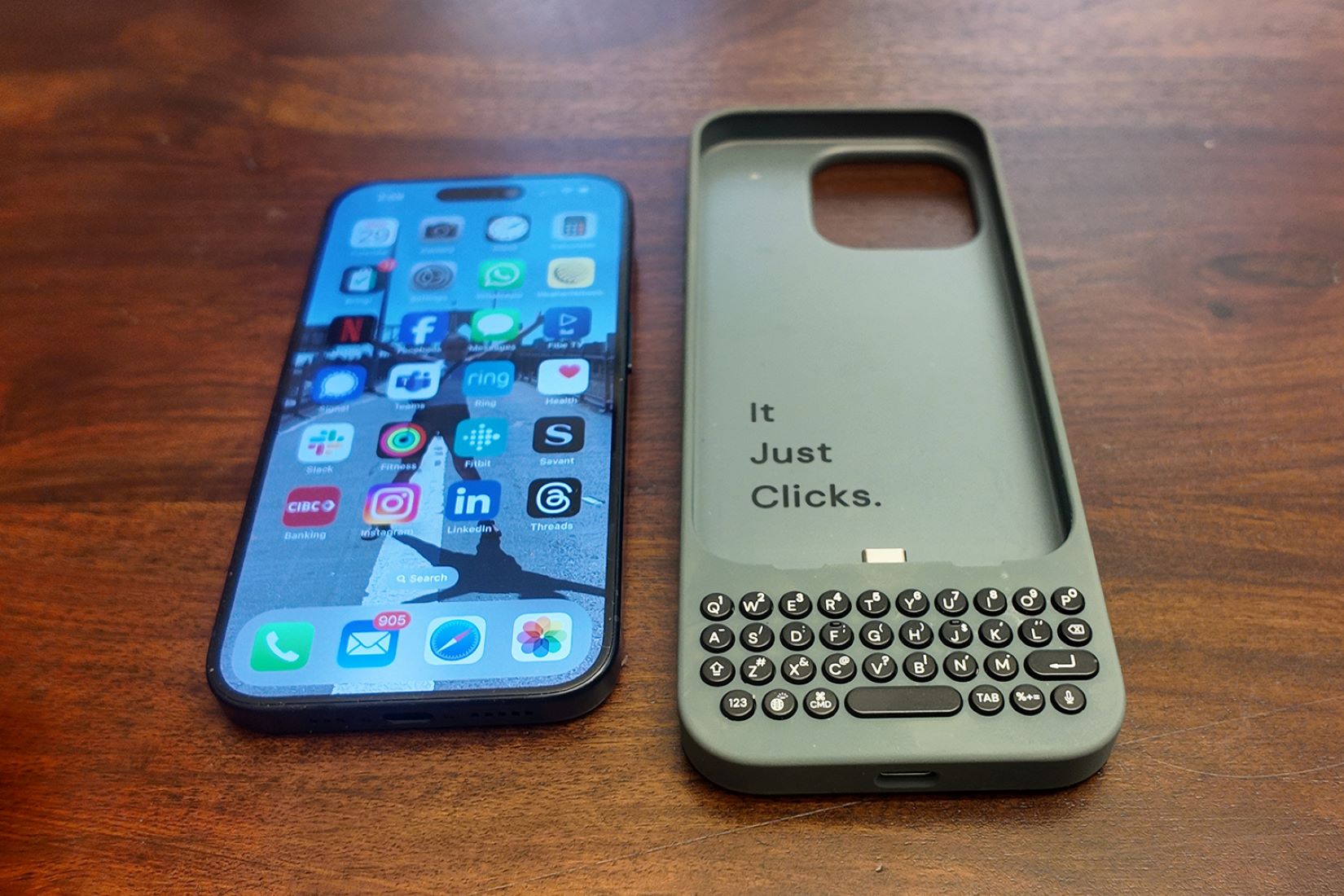

In a market filled with smooth glass slabs and subtle haptic taps, Clicks Technology has taken a noticeably different approach. Instead of refining the touchscreen even further, it brings back something that quietly disappeared over the years: physical keys. The company was founded by familiar tech voices, including Michael Fisher and Kevin Michaluk, and the product reflects that perspective. It feels opinionated, a little stubborn in a good way, and clearly aimed at people who type a lot.
At its core, Clicks is about reclaiming screen space and restoring precision. Touchscreens are fast, yes, but they still miss keystrokes and hide content behind software keyboards. Whether you are using an iPhone 16 Pro or moving up to the iPhone 17 lineup, the overall experience is consistent. There is a short adjustment period, but it is not nearly as intimidating as it might look at first glance.
Phase 1: Installation and Hardware Setup
One of the more refreshing aspects of Clicks is that it does not rely on Bluetooth. There is no pairing process, no battery to charge, and no connection to drop. The keyboard connects directly to your phone using either Lightning or USB-C, depending on the model.
Step 1: Prepare the device
Remove any existing case and make sure the phone is clean. The Clicks case is precision-molded, so even a thin case underneath will prevent it from fitting correctly.
Step 2: The shallow angle insertion
Hold the Clicks case in one hand and align the bottom of your iPhone with the connector at the base of the case. For iPhone 15, 16, and 17 models, this will be USB-C.
Slide the phone down gently at a shallow angle until the connector is fully seated. It should feel controlled, not forced.
A quick warning here, because it matters more than it seems. Avoid inserting the phone at a steep angle. Doing so can put unnecessary stress on the connector and may void your warranty. It is one of those steps people tend to rush, but slowing down helps.
Step 3: Snap the top
Once the bottom is connected, press the top of the iPhone into the flexible upper housing of the case. You will feel a soft snap when it locks into place. At that point, the phone and keyboard feel like a single, solid unit.
Phase 2: Software Configuration and the Clicks App
The keyboard works immediately for basic typing, but the experience improves noticeably once you install the Clicks app from the App Store.
Step 1: Install the Clicks app
The app manages firmware updates, which address things like occasional ghost key presses and improve compatibility with new iOS versions. These updates are easy to overlook, but they are worth keeping up with.
Step 2: Configure typing preferences
Inside the app, you can fine-tune how the keyboard behaves:
Backlight Control lets you choose Automatic, Always On, or Off.
Alt Lock and Caps Lock can be set to activate with a single or double tap.
Soft Return determines whether the Return key sends a message or simply creates a new line.
None of these settings are strictly required, but adjusting them makes the keyboard feel more personal, maybe even more intuitive over time.
Step 3: Enable Full Keyboard Access (optional)
For users who like deeper control, go to Settings > Accessibility > Keyboards > Full Keyboard Access and toggle it on. This allows you to navigate much of iOS using only the keyboard. It is not something everyone will use daily, but once you get used to it, the phone starts to feel more like a tiny computer than a traditional handset.
Phase 3: Mastering Shortcuts and Clicks Mode
Typing is only part of what Clicks offers. The real efficiency comes from shortcuts.
Common system shortcuts
CMD + Space opens Spotlight Search.
CMD + H returns you to the Home Screen.
CMD + Tab switches between recently used apps.
The Spacebar scrolls down webpages in Safari.
These shortcuts work instantly and, over time, shave small but meaningful chunks off everyday tasks.
Setting up custom Clicks Mode shortcuts
You can also create custom shortcuts using Apple Shortcuts.
Create a new shortcut, such as “Open Instagram.”
Go to Settings > Accessibility > Keyboards > Full Keyboard Access > Commands.
Scroll to find your custom shortcuts.
Assign a key combination, for example Clicks Key + I.
It takes a bit of setup, but once it is done, launching apps or automations feels almost effortless.
Phase 4: Ergonomics and Daily Handling
Adding a keyboard changes the phone’s balance and length, and that affects how it feels in your hand. Ignoring that can lead to fatigue, especially during longer typing sessions.
The cradle grip
Avoid holding the phone by the keyboard alone, sometimes referred to as the prayer position. Instead, cradle the back of the phone with your fingers and let your pinky support the bottom of the keyboard. It sounds minor, but the difference is noticeable.
MagSafe usage
If you are using the iPhone 17 version of Clicks, MagSafe support is built in. For iPhone 16 models, you will want the Power Keyboard or another MagSafe-compatible version to retain magnetic charging and accessory support.
Pass-through charging
Charging is handled through the port at the bottom of the Clicks case. Newer models support USB-C data pass-through, which means you can use CarPlay or transfer files without removing the case. It is a small detail, but one that quickly becomes essential.
Taken as a whole, the Clicks keyboard is not just about nostalgia. It is a different way of interacting with your phone. It might feel slower at first, maybe even slightly awkward, but once everything clicks, the workflow starts to make a lot of sense.
Frequently Asked Questions (FAQ)
Q. Does the Clicks keyboard drain the iPhone battery?
A. The power draw is minimal. Since it has no battery of its own and only powers the keys and a small backlight, the impact on your daily battery life is negligible (typically less than 1–2%).
Q. Can I use the on-screen keyboard while the case is on?
A. Yes. If you need to use emojis or a specific software key, you can tap the Show/Hide Keyboard button on the Clicks unit to toggle the iOS virtual keyboard.
Q. Is the Clicks case compatible with screen protectors?
A. Yes, most standard glass and film screen protectors fit perfectly. However, very thick “edge-to-edge” protectors may occasionally interfere with the lip of the case.
Q. How do I clean the Clicks keyboard?
A. Use a damp, lint-free cloth. Do not spray liquids directly onto the keys. For the vegan leather backing, a simple wipe-down will maintain the grip and texture.
Q. What should I do if the keyboard stops responding?
A. First, ensure the iPhone port is free of lint. If it still doesn’t work, perform a “hard reset” by removing the phone and re-inserting it. Ensure your firmware is updated via the Clicks App.